

How To Clear Your Browser’s Cache – Firefox
 How do I clear cache in Firefox? How do I delete the history in Firefox? These are questions that clients frequently ask when they cannot see edits to a web page.
Firefox is the second leading browser in the United States according to StatCounter. The reason that one cannot see changes to a web page is a result of the browser’s cache. An Internet browser uses cache, (pronounced “cash”) to store data from visited websites on a computer for quick retrieval. To clear the cache in Firefox, use the following graphical instructions:
How to Clear Internet Firefox Cache
(History and Temporary Internet Files)
Step One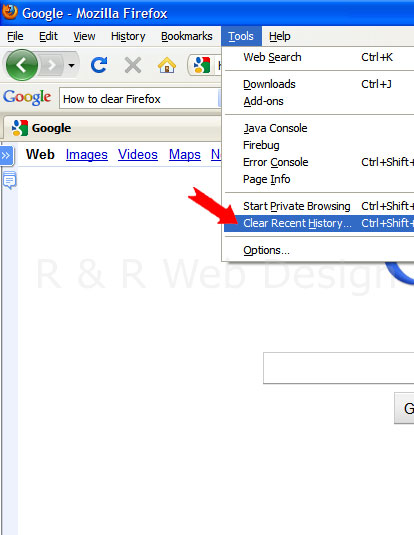
|
Step Two
|
© R & R Web Design LLC, a Michigan web design company that provides professionally designed websites that are intergrated with natural search engine optimization.