

How To Clear Your Browser’s Cache – Internet Explorer 8
 One situation that web designers experience on a regular basis is that after making changes to a web page, the client is unable to view the new edits and/or additions to their Web site on their web browser. This is due to their browser’s cache.
Cache, which is pronounced “cash”, has an entirely different meaning. Cache is data of previously accessed data that is stored on one’s machine . This data is stored to improve performance for frequently accessed information.
When a web browser visits a web page, data is cached on the machine’s local hard drive to speed up the access of a site access and at the same time reduces the bandwidth required to display the page for quick retrieval. To clear IE8 cache, follow these directions:
How to Clear Internet Explorer 8 Cache
(History and Temporary Internet Files)
Step One
|
Step Two
|
Step Three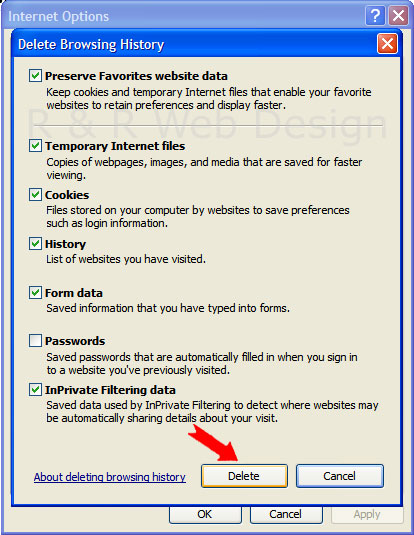
|
© R & R Web Design LLC, a Michigan web design company that provides professionally designed websites that are integrated with natural search engine optimization.

